Creating Memoirs is now easy!
Step-by-step instructions: how to create a book of memories
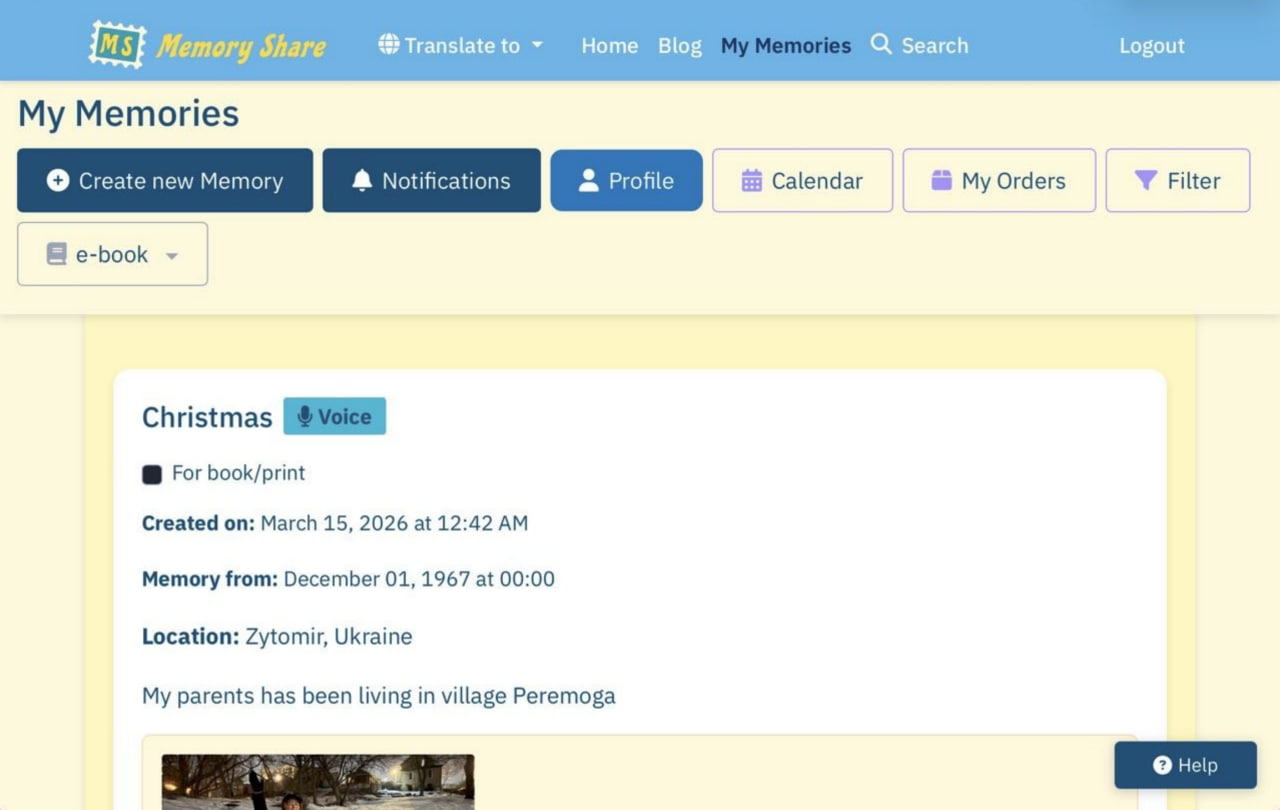
You can create your Memories on this site: 1. In the My Memories section, select the "Create a new Memory" button in the upper right corner of the screen. 2. On the Create a New Memory page that opens, fill in the fields: Title (It will be name of the chapter the MemoryBook). If you also add the approximate year/date and place/country or city, after creating many Memories you will have the opportunity to sort them for a future book. 3. In the "Description" field, add text of your Memory (it will be text of the Chapter), But here you don't even have to type in the field, you can click the "Record Voice Message" button and tell your story! Our service will transcribe your story into text in just 2 minutes, and you can reread and edit it later if necessary. And add photos from your family archive - these will be illustrations for your future book.You can also add 3 photos and 1 video to each Memory. 4. For easier searching, you can add Tags. 5. By default, your Memory is ''Private" and visible just for you. All data is securely encrypted! However, if you would like to show the Memory everyone, turn the selector in the "Public" mode. 6. After clicking the blue Create Memory button at the bottom of the screen, your Memory will appear on the Home page (if the created as "Public") and, of course, on your own page. 7. If you need to correct or add anything, you can use the Edit function: a) Select the desired Memory on your "My Memories" page. b). Below it, there's a "View Details" button. Click it, and the Edit and Delete buttons will appear in the upper right corner of that Memory's page. c). Click the desired one and edit, change what you want, and don't forget to click the "Save Changes" button after editing... And of course, you can delete this Memory and create a new one. Each Memory is a chapter in your future book of Memories. Once you've created enough Memories, you can sort and select the ones you need, and with one click of the "Create eBook" button, you'll get an e-Book. You can download it, or forward it to your email address, or to your children, grandchildren, or friends. To anyone! And that's still the Basic free plan!
Your story is worth preserving too.
Create and preserve your memories. Write them, record them by voice, and add photos when you are ready.
Preserve your memoriesReactions
Comments
No comments yet.